

Yes, Excel can run a genuine Kanban board, and you have three fast routes to get there: download a ready-made template, build a FILTER-driven board that updates itself, or import your existing sheet straight into a board tool. Templates suit anyone who wants something working in minutes. FILTER-based boards suit Excel 365 or 2021 users who want full control. Importing suits teams ready to move off spreadsheets altogether, and Seventasks accepts spreadsheet imports directly.
TL;DR:
- Excel Kanban boards work best for small teams, simple workflows, and short projects, with real-time updates limited to Excel 365 or 2021 users.
- Converting a task list into a Kanban involves preparing a Backlog sheet with key columns, building a Board layout, and testing formula-based updates.
- Using data validation dropdowns for Stage and Priority prevents errors that can halt automatic task movement between columns.
- Implementing WIP limits with counters and conditional formatting helps identify bottlenecks and prevent work overload in specific columns.
- Upgrading to dedicated tools like Seventasks provides better automation, real-time collaboration, and easier migration once Excel limitations hinder productivity.
Table of Contents
- What is excel to kanban and when should you use it?
- How do you convert an Excel task sheet into a Kanban board?
- Setting up the two-sheet structure: Backlog and Board
- Writing the FILTER formulas that populate your cards
- Highlighting priority and overdue tasks with conditional formatting
- Adding WIP limits and simple bottleneck alerts
- Automating task creation: macros, imports, and platform tools
- Finding and adapting a good Excel Kanban template
- Fixing common problems in an Excel Kanban board
- Is Excel still the right tool, or is it time to move on?
- Moving your Kanban board off Excel without losing your workflow
- Sources
What is excel to kanban and when should you use it?
Converting excel to kanban means splitting your task list into lanes (usually Backlog, To Do, In Progress, Review, Done) with WIP limits that cap how many cards sit in any one lane at once. It works because most task tracking already lives in a spreadsheet. You're not learning new software, just reshaping data you already have.
Excel earns its place when the team is small, the workflow is simple, and nobody wants another login. It struggles once you need real-time notifications, mobile access, or more than a handful of simultaneous editors.
- Best fit: solo freelancers, small teams, short projects, budget-conscious setups
- Weak fit: distributed teams needing live updates, complex dependency tracking, mobile-first work
- Sharing: Excel 365 supports co-authoring via OneDrive, so multiple people can edit the same workbook at once without version conflicts, provided everyone has a Microsoft 365 licence
Older desktop-only Excel (2016, 2019) can still build a Kanban board, just with more manual formula work and no live co-authoring.
How do you convert an Excel task sheet into a Kanban board?
Converting a flat task list into a functioning board takes four steps, most of them under fifteen minutes each.
- Prepare your Backlog sheet. Add columns for Task Name, Stage, Priority, Owner, Due Date, and Notes. This becomes your single source of truth.
- Build a Board sheet. Add one column header per workflow stage (Backlog, To Do, In Progress, Done) across the top row, leaving space below each for cards to appear.
- Choose your method. Pick a downloaded template if you want speed, a FILTER-based setup if you're on Excel 365 or 2021, or an import route if you're testing a dedicated tool alongside your spreadsheet.
- Test it. Change a task's Stage value in the Backlog and confirm the card moves to the correct Board column automatically. If it doesn't move, your formula range or Table reference needs checking.
That fourth step matters more than people expect. A board that doesn't update automatically when you change a status cell is just a static chart, not a working Kanban system. Test it before you trust it with real tasks.
Setting up the two-sheet structure: Backlog and Board
Every reliable Excel Kanban setup splits into two sheets: a Backlog that holds the data, and a Board that displays it visually. Keeping data and display separate means you edit one place and see the change reflected everywhere else, rather than hunting through scattered cells.
The Backlog sheet needs these columns at minimum:
- Task ID (a simple sequential number, used for lookups)
- Task Name
- Stage (dropdown: Backlog, To Do, In Progress, Done)
- Priority (dropdown: High, Medium, Low)
- Due Date
- Owner
Set Stage and Priority as data validation dropdown lists rather than free text. It stops typos ("In Progrss" instead of "In Progress") from silently breaking your board formulas, which is one of the most common reasons a Kanban board stops updating.
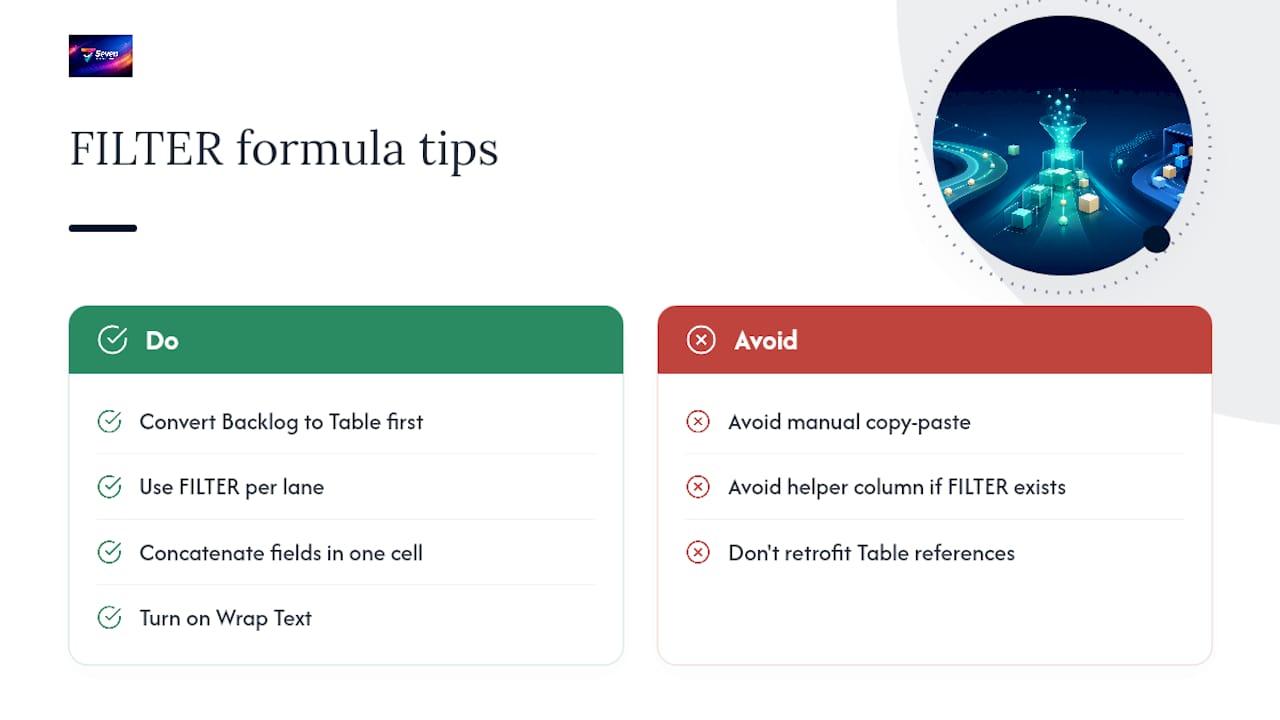
Convert this range into an actual Excel Table (Insert > Table, or Ctrl+T). Tables auto-expand as you add rows, so your FILTER formulas on the Board sheet never fall out of range when the task list grows. Named ranges built on a raw cell range don't do this automatically, and that gap is where most broken boards start.
Writing the FILTER formulas that populate your cards
Once your Backlog is a Table, populating Board columns becomes one formula per lane instead of manual copy-paste. In Excel 365 or 2021, the pattern looks like this:
The first argument is what you want returned; the second is the condition it must match. Swap Backlog[Task Name] for a concatenated string (using &) if you want each card to show name, owner, and due date together in one cell, and turn on Wrap Text so multi-line cards display cleanly instead of spilling into neighbouring columns.
If you're on an older Excel version without FILTER, use a helper column with INDEX and MATCH instead. It's clunkier, needs manual range adjustment as tasks grow, but does the same job.
Pro Tip: Convert the Backlog range to a Table before writing any FILTER formulas, not after. Retrofitting formulas onto a Table reference later means rewriting every single one.
Highlighting priority and overdue tasks with conditional formatting
A board full of identical grey cards tells you nothing at a glance. Conditional formatting fixes that by colouring cards based on Priority or Due Date the moment the underlying Backlog value changes.
Set these rules on the Board sheet, referencing the matching Backlog row rather than typing static colours:
- Red fill for cells where the linked Priority equals "High"
- Amber fill for "Medium," green or no fill for "Low"
- A separate rule flagging any card where Due Date is earlier than
TODAY(), regardless of priority
Templates built by professional providers commonly bundle exactly this: dropdown priority fields, automatic overdue highlighting, and stage counters baked in from the start, so you're not designing rules from scratch.
Keep the rule count low. Every extra conditional formatting rule on a large sheet adds a recalculation cost, and stacking a dozen overlapping rules on the same range is a common reason boards start lagging once task counts climb into the hundreds.
Adding WIP limits and simple bottleneck alerts
WIP limits are the actual mechanism that makes Kanban work rather than just look like Kanban. Without them, "In Progress" quietly becomes a dumping ground.
- Add a counter cell above each Board column using
=COUNTA(range)or=COUNTIF(Backlog[Stage], "In Progress"). - Set a WIP limit cell next to it (a plain number you choose, like 5).
- Apply conditional formatting so the counter cell turns red when the count exceeds the limit.
- In stand-ups, check two things: which column is flashing red, and which task has sat longest in that column (sort by Due Date or a "Date Entered Stage" column if you add one).
That last habit, tracking the oldest task in a bottlenecked column, catches stalled work faster than the WIP counter alone.
Automating task creation: macros, imports, and platform tools
You don't have to enter every card by hand. Two automation routes exist, and they suit different levels of comfort with risk.
A macro can read Backlog rows and generate tasks automatically, but macros carry real security caveats since they run executable code inside your workbook. Only enable macros from files you or your team wrote yourselves.
- Macro route: full control, faster once built, requires enabling macro execution
- Import route (CSV or platform import tool): safer, no code running, usually maps Task Name, Stage, Priority, and Due Date fields automatically
- Choose import when the team is wary of macros or when you're only moving data once, not repeatedly
Pro Tip: If you're testing whether to migrate off Excel entirely, run the import route first. It costs nothing to try and shows you exactly how your Backlog columns map onto a board tool's fields before you commit to anything.
Finding and adapting a good Excel Kanban template
A worthwhile template should tick every one of these boxes before you build anything from scratch:
- Compatible with your Excel version (check whether it needs 365-only functions like FILTER)
- Includes dropdown Stage and Priority fields already validated
- Has conditional formatting rules already applied, not just described in a readme
- Uses an Excel Table as its data source, so it scales past a few dozen rows without formula errors
- Comes with WIP counters, not just static column headers
Once downloaded, rename the Backlog columns to match your own fields, then re-point the FILTER formulas at the renamed Table columns. Browsing a few ready-to-copy Kanban board examples before you commit saves you rebuilding a template that doesn't fit your workflow.
Fixing common problems in an Excel Kanban board
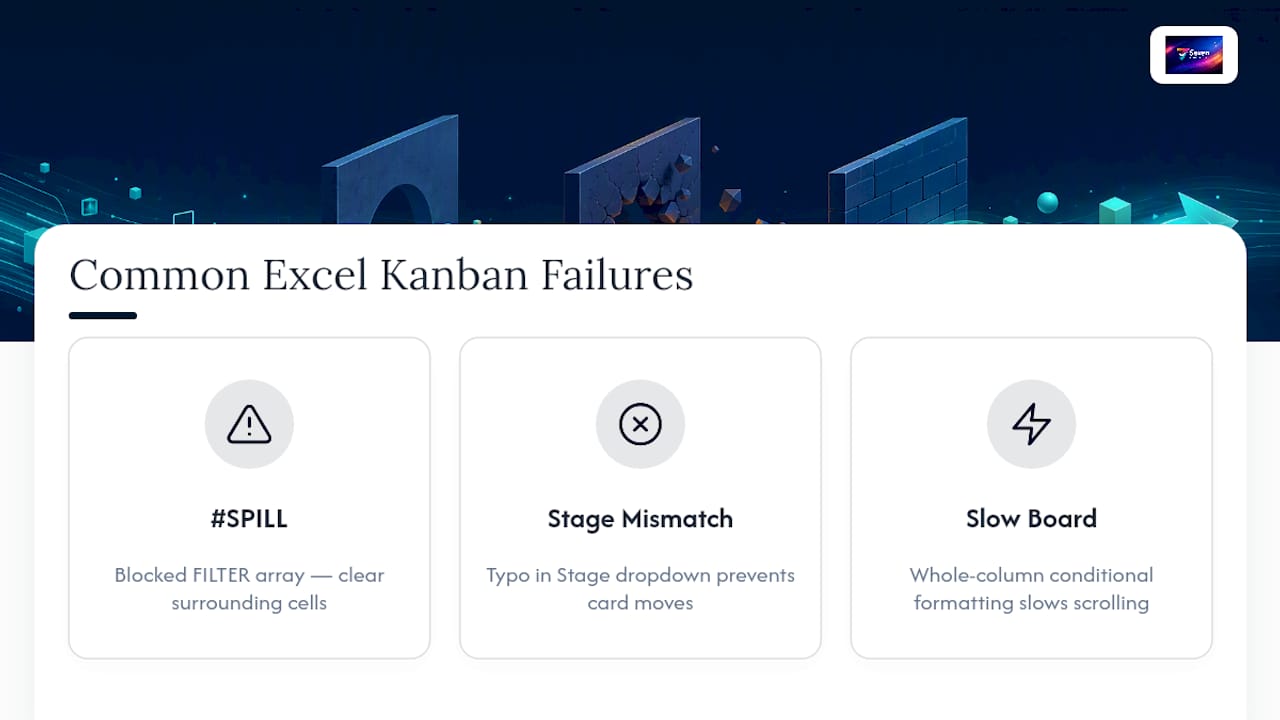
Most Excel Kanban boards break in the same three places. A #SPILL! error on a FILTER formula usually means another cell is blocking the array's expansion path, so clear the surrounding cells. A card that won't move between columns almost always traces back to a typo in the Stage dropdown value, not a formula fault. And a board that slows to a crawl on scroll is nearly always caused by conditional formatting rules applied to entire columns instead of a bounded range.
For teams sharing one workbook, store it on OneDrive or SharePoint rather than emailing copies around, since that's what enables real-time co-authoring and stops the "final_v3_ACTUAL.xlsx" problem entirely.
Pro Tip: Before troubleshooting a broken formula, check whether someone accidentally converted the Table back to a normal range. It's the single most common cause of a Board sheet silently stopping updates.
Is Excel still the right tool, or is it time to move on?
Excel earns its keep for small teams and short projects, precisely the situations Vertex42's hybrid spreadsheet approach was designed for. The migration trigger isn't team size on its own. It's the moment version conflicts, mobile access, or notification gaps start costing more time than the formulas ever saved. When that happens, preserve your Backlog columns exactly, since they map cleanly onto most board tools' import fields.
— Greg
Moving your Kanban board off Excel without losing your workflow
If your Excel board has outgrown itself, spreadsheets and boards don't have to be an either/or choice. Seventasks reads your existing task list directly, columns and all, so nothing you built in Excel gets thrown away in the switch.
Where Excel needs FILTER formulas and manual conditional formatting rules to fake real-time updates, Seventasks gives you flexible workspaces, boards, and built-in messaging as native features, plus privacy-first data handling with no analytics tracking or data mining on your work. Pricing stays plain: $5 for individuals, $9 per user for teams, no hidden add-ons. Start with a 7-day free trial, import your Backlog sheet directly on the Seventasks landing page, and see your existing tasks sitting on a live board within minutes.
Sources
For further reading on building your own board, see the step-by-step FILTER and Table method, the Vertex42 hybrid Kanban template, and Shortcut's downloadable Kanban template. For column and WIP limit setup specifically, Seventasks' own practical column guide covers lane design in more depth.
- How to Turn Excel into a Kanban Board for Agile Project Tracking - ExcelDemy
- Kanban Board Template for Agile PM | Vertex42
- Free Kanban Board Template for Excel | Shortcut