

Every kanban board starts with three columns: To Do, In Progress, and Done. That three-column baseline is enough to make work visible on day one. For most teams, the first useful addition is a Ready (or Selected) column just before In Progress, plus a Blocked flag or short dedicated column to surface stuck cards. Beyond that, two design levers determine everything: WIP limits (how many cards can sit in a column at once) and value stream mapping (which real handoffs in your workflow deserve their own column).
The recommended starting setup for most teams:
- Backlog — all incoming work, unfiltered
- Ready — items selected and meeting your Definition of Ready
- In Progress — actively being worked
- Done — meets your Definition of Done and is complete
Add a Blocked flag or column only when blockers are frequent enough to track separately.
Key Takeaways
The most effective kanban board column setup starts with three columns, adds a Ready stage and a Blocked signal, then expands only where value stream mapping reveals a genuine handoff or delay.
| Point | Details |
|---|---|
| Start with three columns | To Do, In Progress, and Done give every team immediate workflow visibility with zero overhead. |
| Add Ready before In Progress | A Ready or Selected column enforces a Definition of Ready and prevents half-baked work from entering active stages. |
| Set WIP limits early | Start at roughly 1.5× the number of people per stage; treat every breach as a signal to investigate, not a reason to raise the limit. |
| Write entry and exit policies | Column-level Definition of Ready and Definition of Done make cycle time data reliable and reduce handoff arguments. |
| Use Seventasks for flexible boards | Seventasks supports column editing, WIP limits, swimlanes, and spreadsheet import with no vendor lock-in and privacy-first data handling. |
Table of Contents
- Why kanban board columns work and when to add more
- Column templates for common team types
- How to design columns that match your actual workflow
- Swimlanes, sub-columns, and flags: choosing the right tool
- Quick setups you can try this week
- Why value stream mapping and column policies build credibility
- A practitioner's view on what actually works
- What most teams get wrong about column design
- Seventasks supports these column patterns from day one
- Sources
Why kanban board columns work and when to add more
The three-column layout works because it forces a team to answer one question at any moment: where is this card? To Do means it hasn't started. In Progress means someone owns it. Done means it's finished. That clarity alone cuts the "wait, what's the status?" conversation in half.
The signals that justify expanding beyond three columns are specific. Watch for these:
- Cards pile up at the same transition point sprint after sprint
- Handoffs between people or teams are unclear (who picks up the card next?)
- You need to measure how long work spends in a particular stage
- Blockers keep appearing at the same step and aren't visible until a standup
A practical approach: run your current board for two sprints or two weeks without changing anything. Note where cards stall. That stall point is your first candidate for a new column or a split. When you do add a column, write its entry and exit policy before the first card enters it.
Pro Tip: Every new column needs an explicit entry criterion (what must be true before a card enters) and an exit criterion (what must be true before it leaves). Without these, teams argue about card placement and your cycle time data becomes meaningless.
Column templates for common team types
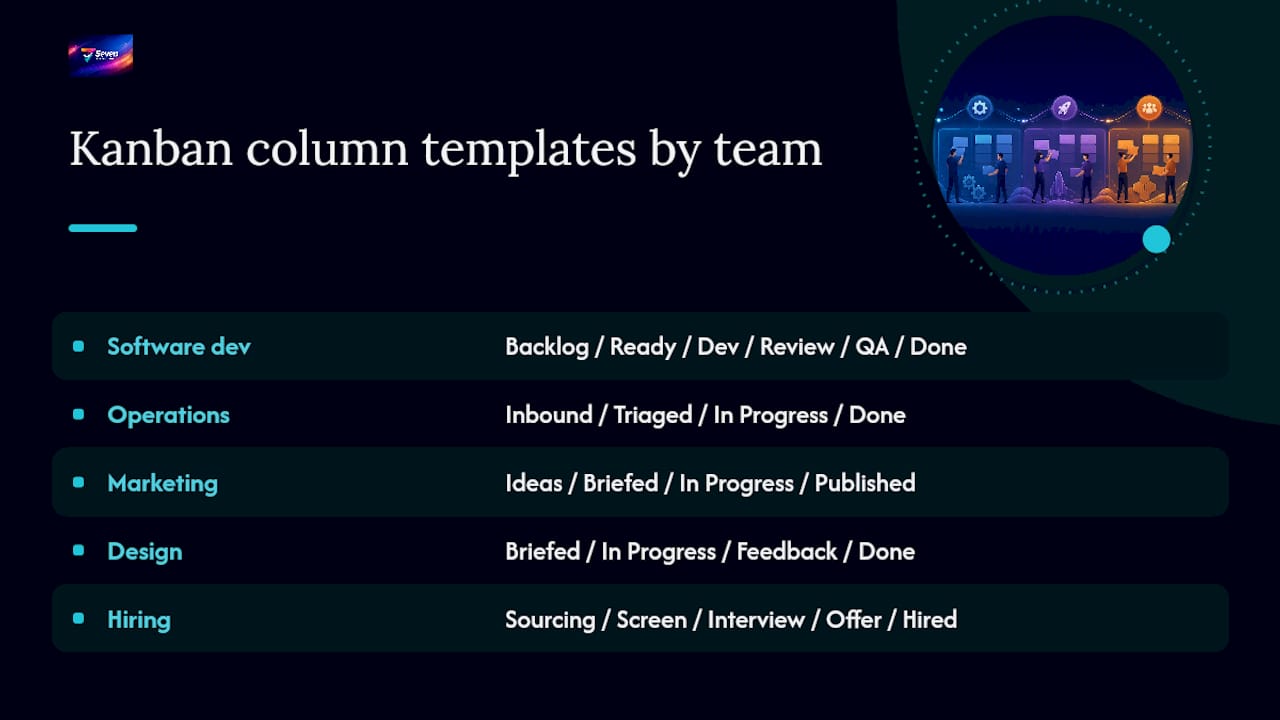
Splitting In Progress into multiple columns is the most common expansion move, and the right split depends entirely on your team's actual handoffs. Here are copy-ready templates.
Software development team
Backlog → Ready → Development → Code Review → QA → Ready to Deploy → Done
Development, Code Review, and QA each get their own column because they involve different people and produce measurable wait times. "Ready to Deploy" separates finished-but-not-shipped work from truly done work, which matters for release planning.
Operations team
Requested → Triaged → In Progress → Pending Approval → Done
Ops teams often have an approval gate that software teams skip. "Triaged" replaces "Ready" to signal that someone has assessed priority and effort before work starts.
Marketing team
Ideas → Briefed → In Production → Review → Scheduled → Published
"Briefed" is the Definition of Ready for marketing: the brief exists, assets are scoped, and a deadline is set. "Scheduled" separates content that's finished from content that's live, which matters for content calendars.
Design team
Backlog → Scoped → Design → Feedback → Approved → Handed Off
"Feedback" is a natural queue column here. Design work almost always waits for stakeholder input, and making that wait visible prevents designers from pulling new work when they're actually blocked.
Hiring pipeline
Applied → Screened → Interview → Offer → Hired / Rejected
Each column maps to a real decision gate. WIP limits on "Interview" prevent scheduling overload when multiple candidates are in flight simultaneously.
| Template | Best for | Value stream fit | Blocker approach |
|---|---|---|---|
| Software | Dev teams with QA and review gates | Maps to code lifecycle handoffs | Flag in-column; add Blocked column if QA blocks are frequent |
| Operations | Approval-heavy workflows | Maps to request-to-resolution flow | Dedicated Blocked column recommended |
| Marketing | Content production pipelines | Maps to brief-to-publish lifecycle | Flag on card; Review column surfaces most waits |
| Design | Iterative creative work | Maps to scope-to-handoff cycle | Feedback column acts as a queue |
| Hiring | Recruiting pipelines | Maps to candidate decision gates | Flag; rarely needs a dedicated Blocked column |
Naming conventions matter more than teams expect. "In Dev" and "Development" mean the same thing, but mixing both on one board creates confusion when someone joins mid-project. Pick one style and apply it everywhere. Prefer verb-noun pairs ("Code Review", "QA Testing") over vague labels ("Processing", "Working").
How to design columns that match your actual workflow
The most reliable method is to map your value stream before touching the board. List every handoff your work goes through from request to delivery. A handoff is a moment when responsibility transfers from one person, team, or tool to another. Each genuine handoff is a column candidate.
PMI's guidance on designing kanban boards is direct: if a Value Stream Map is available, use it as the primary blueprint. Where significant delays occur between activities, add a queue column to make the stall visible rather than hiding it inside a broad "In Progress" stage.
Once columns are mapped, define entry and exit policies for each one. A Definition of Ready for a column answers: "What must be true before a card enters here?" A Definition of Done answers: "What must be complete before this card moves on?" Document these directly on the board, in a card template, or in a pinned note. Teams that skip this step find that cycle time data drifts because cards move at different thresholds depending on who's on shift.
WIP limits are the other essential lever. A practical starting point: set the limit for each active column at roughly 1.5 times the number of people who work in that stage. A three-person dev team starts with a WIP limit of 4–5 in the Development column. When a column hits its limit, the team stops pulling new work and helps clear the bottleneck first. That discipline is what makes WIP limits valuable, not the number itself.
Pro Tip: When a column consistently hits its WIP limit, resist the reflex to raise the limit. The breach is the signal. Investigate the bottleneck first: is it a resource constraint, an unclear handoff, or a dependency on another team?
Split columns are worth adding when a stage has a clear "active" phase and a "waiting" phase. A Development column split into "In Development" (left) and "Awaiting Review" (right) shows exactly how many cards are done but not yet picked up by a reviewer. Azure DevOps documents this as a pull mechanism: the right sub-column holds cards waiting to be pulled into the next stage, which prevents teams from falsely marking work complete just to push it forward.

Swimlanes, sub-columns, and flags: choosing the right tool
Adding a column is not always the answer. Three tools address different problems.
Swimlanes run horizontally across the board and group cards by class of service, work type, or priority. Use swimlanes when:
- Your team handles genuinely different work types (bugs, features, technical debt) that follow different policies
- You need to separate expedited work from standard work visually
- Multiple reviewers share a board and need to see their own queue at a glance
InfoQ notes that grouping similar activities with swimlanes and applying different columns per lane optimizes flow for mixed-work teams. A bug lane might have fewer columns than a feature lane because bugs skip the design stage entirely.
Sub-columns (split columns) work inside a single stage. They answer the question "is this card being worked, or is it waiting?" without adding a full new column to the board. Use them for review stages, approval gates, or any handoff where cards regularly queue.
Flags and card labels handle transient states: Blocked, Expedite, Customer Review, Awaiting External Input. A flag is the right choice when the state is temporary and doesn't change the card's position in the workflow. A dedicated Blocked column makes sense only when blockers are frequent, need tracking, and require a team response beyond flagging.
Pro Tip: If you're debating a Blocked column vs. a flag, count your blocked cards over two weeks. Fewer than three per week? A flag is enough. More than that, and a dedicated column with a WIP limit of zero (meaning: no card should sit there long) gives you the visibility to act.
The Lean Kanban guide recommends evolving boards gradually: start with three columns, add swimlanes and stage-specific columns as your process understanding improves, not before.
Quick setups you can try this week
These are one-week experiments, not permanent commitments.
Fast-moving ops team (5-day trial) Add a "Triaged" column before In Progress. Set a WIP limit of 3 on In Progress. Track how many cards move from Triaged to In Progress each day. At day 7, check whether the queue in Triaged is growing or stable.
Cross-functional feature team (5-day trial) Split In Progress into "In Development" and "Awaiting Review." Set WIP limits: 4 on In Development, 2 on Awaiting Review. Count how many cards sit in Awaiting Review at each standup. If the number stays above 2 consistently, the review stage is your bottleneck.
Marketing team (5-day trial) Add a "Briefed" column before In Production. Require a completed brief card field before any card enters Briefed. At day 7, check whether In Production cards are moving faster because the brief is already done.
Design or hiring team (5-day trial) Add a "Feedback" or "Interview Scheduled" queue column. Set a WIP limit of 2. Track how long cards sit in that column. Cycle time from entry to exit tells you how responsive your stakeholders or interviewers are.
For remote and distributed teams, card fields matter more than they do in co-located settings. Populate owner, start date, and an SLA tag on every card. Use card comments to replace the desk-side "hey, is this ready?" conversation. A card that enters a column without an owner and a start date is invisible to a remote teammate.
Pro Tip: In the first week of any column experiment, don't change anything else on the board. Isolate the variable. If you add a column and change WIP limits at the same time, you won't know which change moved the needle.
Why value stream mapping and column policies build credibility
Teams that design columns from a value stream map rather than intuition tend to find hidden handoffs faster. A software team that mapped their stream discovered a step where developers marked code "done" but it sat for three days before QA picked it up. Adding a "Ready for QA" queue column made that three-day wait visible in the first week. The team then set a WIP limit on that queue and assigned a daily QA pull cadence, cutting the average wait from three days to one.
Documented column policies do something beyond reducing ambiguity: they make measurement reliable. Cycle time per stage only means something if every team member agrees on when a card enters and exits a column. Without written policies, one person moves a card when they start work; another moves it when they finish. The data looks inconsistent because it is.
Pro Tip: Paste your entry and exit policies directly into the column header description or a pinned card at the top of each column. Policies buried in a wiki get ignored. Policies on the board get read.
A practitioner's view on what actually works
What most teams get wrong about column design
The most common mistake is adding columns to solve a communication problem. A team that's unclear on who owns a handoff adds a "Waiting for X" column. Then another. Then a "Pending Approval" and a "Needs Clarification." Six months later, the board has eleven columns and nobody trusts the card positions because moving a card feels like a bureaucratic act rather than a real workflow signal.
The pragmatic rules that hold up: keep your core flow to five or six columns maximum. Split a column only when the split clarifies a real handoff between different people or roles. Use flags for anything transient. Review your column structure at every retrospective, not just when something breaks.
On the Blocked column debate: a flag is almost always sufficient for teams smaller than eight people. A dedicated Blocked column earns its place when the team is large enough that blockers need an owner and a resolution SLA, not just a visual marker. The column forces the question "who is unblocking this?" in a way a flag alone doesn't.
Inconsistent naming is the other silent killer. "In Dev," "Development," "Coding," and "Active" all mean the same thing to different people on the same team. Pick one name per stage, document it, and enforce it. The board is a shared language.
Seventasks supports these column patterns from day one
Seventasks is built for exactly the kind of flexible, privacy-first board setup this guide describes. You can add, rename, and reorder columns without touching a settings menu, set WIP limits per column, and use card fields to capture owner, start date, and SLA tags that remote teams depend on. Swimlane support and split-column configurations are available out of the box, so the templates in this guide translate directly to a live board.
The privacy angle matters for teams handling sensitive project data: Seventasks does not mine your data or use it for analytics, and your workspace stays yours. Pricing starts at $5/month for individuals, with team plans at $9 per user per month, and a 7-day free trial requires no credit card.
Import your existing spreadsheet board directly into Seventasks and apply any of the column templates above on day one. Start your free trial at Seventasks and run your first one-week column experiment in a live workspace.
Sources
The guidance in this article draws on five primary sources. Each backs a specific set of recommendations.
- Kanban board — Wikipedia
- Designing the Kanban board — PMI
- Kanban step-by-step guide — InfoQ
- Kanban overview — Azure DevOps documentation
- Lean Kanban guide — archived