

Use a hybrid: folders for stable structure, tags for flexible context. That single rule covers the majority of real workflows, whether you're organizing files, notes, or tasks. Here's how to apply it immediately:
- Stable ownership → folder. If an item belongs to one project, client, or archive, give it a folder home. Backups stay clean, handoffs stay simple.
- Cross-cutting retrieval → tag. If you need to find all "urgent" items, all notes about a specific client, or everything tagged "Q3," use a tag. A folder can't do that without duplication.
- Mixed workflows → hybrid. Most people fall here. Four top-level folders (Projects, Areas, Resources, Archives) plus a controlled set of 8–12 tags handles the vast majority of real-world retrieval needs.
Recommended next step: Run a 14-day pilot. Pick one active project, file everything into a simple folder tree, and add two or three tags per item. After two weeks, check whether you're finding things faster or slower than before.
Key Takeaways
A hybrid system, folders for stable structure and tags for flexible context, outperforms either approach used alone for most real-world retrieval needs.
| Point | Details |
|---|---|
| Use a hybrid | Folders handle ownership and backups; tags handle status, themes, and cross-cutting retrieval. |
| Cap your tag set | Keep tags to 20 or fewer; prune any tag with fewer than three items each quarter. |
| Run a 14-day pilot | File one active project into a simple folder tree with eight tags; measure retrieval time and tag reuse. |
| Migrate in three phases | Audit, then bulk-apply, then validate with a retrieval test before touching the full archive. |
| Seventasks supports the hybrid | Flexible workspaces, labels, Excel import, and clean data export let you run this system without vendor lock-in. |
Table of Contents
- What folders and tags actually are
- How tags and folders compare across the axes that matter
- When folders are the right call
- When tags are the better choice
- Hybrid patterns you can copy and use today
- How to choose your system: a 14-day pilot
- How to migrate to a hybrid system without losing anything
- Governance rules that keep your system from falling apart
- What the research says about folders vs tags
- A starter configuration worth copying
- Seventasks fits the hybrid approach without the lock-in
- Sources
What folders and tags actually are
Folders and tags solve the same problem from opposite directions. Knowing the difference precisely changes how you design any organization system.
Folders are hierarchical containers. Each item lives in exactly one folder. The structure is a tree: one root, branches, leaves. A file called contract_draft.pdf lives in Clients/Acme/2025/Contracts/ and nowhere else. That single-home rule is both the strength and the limitation. Folders give each file a single home that simplifies backups and handoffs, while tags provide multiple retrieval paths and context such as status, client, or topic.
Tags are labels attached to an item as metadata. One item can carry many tags. That same contract_draft.pdf could be tagged #acme, #urgent, #legal, and #q3-review simultaneously. No duplication, no copies in multiple folders.
A quick example across three contexts:
- File:
project_brief.docx→ Folder:Projects/Website Redesign/| Tags:#draft,#client-review - Note: Research note on user interviews → Folder:
Resources/UX Research/| Tags:#interviews,#mobile,#2025 - Task: "Send invoice to Acme" → List/Board:
Active Projects| Tags:#invoicing,#acme,#this-week
The folder tells you where something lives. The tag tells you what it is or what state it's in. Both answers matter.
How tags and folders compare across the axes that matter
The choice between tags vs folders rarely comes down to one factor. Here's how each approach performs across the dimensions that actually drive decisions:
Best for (use-case)
- Folders: archive storage, single-owner projects, regulated records, shared repositories where others need to browse without training.
- Tags: status tracking, cross-cutting themes, research notes that connect to multiple topics, multi-project assets.
Searchability and retrieval speed
- Folders: fast for known-location retrieval ("I know it's in the Acme folder"). Controlled studies found a strong user preference for folders in storage and retrieval tasks, with folders producing higher success rates and faster retrieval speeds in some controlled tasks.
- Tags: faster for attribute-based retrieval ("show me everything tagged urgent and Q3"). Fails when tags are inconsistent or bloated.
Scalability and long-term maintenance
- Folders: stable but rigid. Deep hierarchies become hard to navigate after 3–4 levels. Renaming a top-level folder can break links and paths.
- Tags: flexible but fragile. Without governance, tag count grows unchecked and retrieval degrades.
Cross-platform and interoperability
- Folders: universally supported. Every OS, every cloud drive, every backup tool understands folders. macOS Finder tags are native; Windows file tags are limited to certain file types and not portable across systems. Cloud drives (Google Drive, Dropbox, OneDrive) support folders natively but handle tags inconsistently.
- Tags: app-dependent. Tags in Notion don't transfer to your file system. Tags in Apple Notes don't follow files exported to Windows. Plan for this before committing to a tag-heavy system.
Setup and learning curve
- Folders: low. Anyone who has used a computer understands folders. Teams adopt them with minimal training.
- Tags: moderate. Requires a controlled vocabulary, naming conventions, and discipline to maintain. Without rules, different team members create
#Client-Acme,#acme, and#ACMEas three separate tags.
Flexibility
- Tags win clearly here. One item in multiple categories without duplication is something folders simply cannot do. For knowledge that connects across topics, tags function like faceted classification and let one item appear under many facets, which is often more useful for long-lived research or idea reuse.
Team governance and enforceability
- Folders: easy to enforce. You can see the structure, audit it, and correct it. New team members understand it on day one.
- Tags: harder. Requires documented conventions and periodic pruning. Teams and contract repositories benefit from folder hierarchies because they reduce training friction; tags add situational flexibility but need maintenance to avoid fragmentation.
The bottom line on axes: Folders win on familiarity, backups, and governance. Tags win on flexibility and cross-cutting retrieval. A hybrid approach produces the best balance of browseability and attribute-based filtering in everyday note and file systems.
When folders are the right call
Some workflows are genuinely folder-first. Here are the scenarios where a folder hierarchy is the cleaner, lower-maintenance choice.
1. Archive and backup storage
Archiving is the strongest folder use-case. Files in an archive have a fixed identity: they belong to one project, one client, one period. A folder path like Archive/2024/Clients/Acme/ is self-documenting and survives any app change or platform migration. Tags don't travel with files when you move them between systems.
Pro Tip: Name archive folders with a year prefix (2024_Acme_Contract) so they sort chronologically without extra tooling.
2. Single-owner projects
When one person owns a project from start to finish, a folder per project is the cleanest structure. No one else needs to find it via a cross-cutting tag. The folder IS the project container.
Pro Tip: Keep project folders flat inside the container: Drafts/, Assets/, Deliverables/, Archive/. Four subfolders is usually enough.
3. Client handoffs and shared repositories
Handing a folder to a client or a new team member works because the structure is self-evident. A zip file of a well-organized folder tree needs no explanation. Tags embedded in a proprietary app do.
Pro Tip: Before any handoff, run a quick audit: every file should have a descriptive name, not final_v3_REAL_final.docx.
4. Regulated records and compliance
Legal, financial, and medical records often require a documented retention structure. Regulators and auditors expect a clear hierarchy. Tags are invisible to most compliance tools and audit trails.
Pro Tip: Mirror your folder structure to your retention schedule. If a record type must be kept for seven years, the folder name should make that period obvious.
5. Shared team repositories
When multiple people need to browse and deposit files without training, folders win. Folders are familiar and fast for cross-team retrieval; tags make ad-hoc grouping easier but need maintenance to avoid fragmentation. A shared Marketing/Campaigns/2025/ folder requires zero onboarding.
Pro Tip: Cap shared repositories at three folder levels. Deeper than that and people start saving to the wrong level or dumping files at the root.
When tags are the better choice
Tags earn their place in specific scenarios. Here are the situations where a tag-first approach pays off.
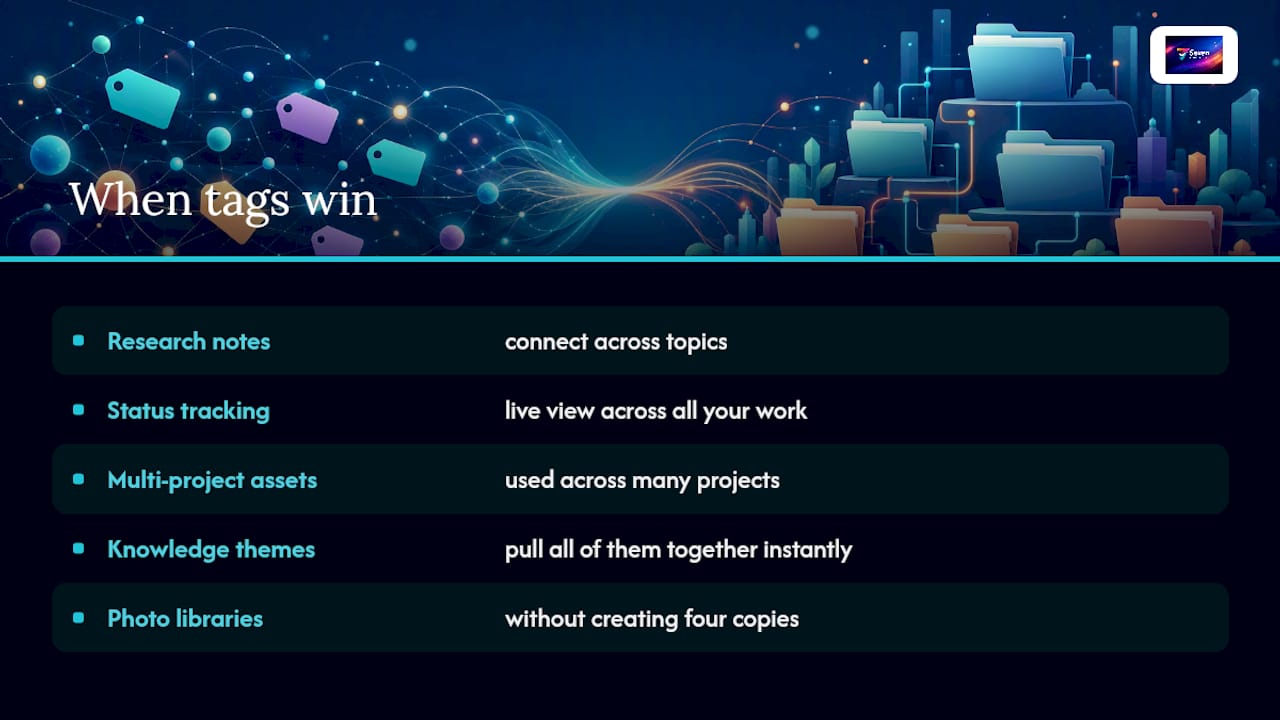
1. Research notes that connect across topics
A note on "user interview findings" might be relevant to three different projects, two different clients, and a general UX research thread. Putting it in one folder means it's invisible to the other two contexts. Tags like #user-research, #mobile-project, and #acme solve this without duplication. Practical guides for research workflows recommend folders for project containers and tags for themes and repeated methods.
Pro Tip: Pick three tag facets for research notes and stick to them: topic, method, and project. That's usually enough to surface anything you need.
2. Status tracking across projects
Tags like #in-progress, #blocked, #waiting-for-client, and #done give you a live view across all your work. A folder can't show you every blocked task across five projects at once. This maps directly to how Kanban boards use status columns as metadata facets, which is exactly what tags do in a note or file system.
Pro Tip: Keep your status tag set to five or fewer values. More than that and people stop updating them consistently.
3. Multi-project assets
A brand logo, a reusable contract template, or a shared photo library gets used across many projects. Tagging with #brand-assets, #reusable, and #approved lets anyone find it from any context. Putting it in one project folder makes it invisible to the others.
Pro Tip: Create a dedicated Resources/ or Shared Assets/ folder as the single home, then tag for context. You get the backup simplicity of a folder with the retrieval flexibility of tags.
4. Cross-cutting themes in a knowledge base
If you keep notes on a topic like "pricing strategy," those notes might span client projects, internal research, and competitor analysis. Tags let you pull all of them together instantly. Folders would scatter them across three different hierarchies.
Pro Tip: Audit your tags quarterly. Any tag with fewer than three items attached is a candidate for deletion or merger.
5. Photo and media libraries
Photos are the classic multi-tag use-case. A photo from a product launch might be tagged #product-launch, #2025, #hero-image, and #approved-for-web. No folder hierarchy can replicate that without creating four copies of the file.
Pro Tip: Use a controlled vocabulary for media tags. Decide once whether it's #hero-image or #hero_image and document it.
Hybrid patterns you can copy and use today
The strongest organization systems combine a stable folder skeleton with a small, disciplined tag set. Here are four named patterns with concrete workflows.
Pattern 1: PARA-inspired (folder-first with tag overlays)
PARA prescribes exactly four top-level containers based on actionability: Projects, Areas, Resources, Archives. Tags add cross-cutting facets inside those containers.
Folder tree:
Projects/
  Website-Redesign/
  Q3-Campaign/
Areas/
  Finance/
  Marketing/
Resources/
  Templates/
  Research/
Archives/
  2024/
  2023/
Tag set (8 tags): #urgent, #waiting, #draft, #approved, #client-name, #recurring, #reference, #archive-ready
Workflow:
- New item arrives → decide: is it actionable? → Projects or Areas.
- Is it reference material? → Resources.
- Is it done? → Archives.
- Apply one status tag (
#draft,#approved) and one context tag (#client-name,#recurring). - Review weekly: move completed project folders to Archives, strip status tags.
Pro Tip: Don't create a new top-level folder. If something doesn't fit PARA's four buckets, it probably belongs in Resources.
Pattern 2: Project-first with status tags
Best for freelancers and small teams with many concurrent client projects.
Folder tree:
Clients/
  Acme/
  BetaCorp/
Internal/
  Admin/
  Marketing/
Archive/
Tag set (8 tags): #in-progress, #blocked, #waiting-for-client, #invoiced, #urgent, #template, #legal, #q3
Workflow:
- New client project → create a folder under
Clients/. - Tag every deliverable with a status tag on creation.
- Update status tags as work moves forward; don't create new tags for new states.
- When a project closes, move the folder to
Archive/and remove all status tags.
Pattern 3: Topic + status hybrid (for note-heavy workflows)
Designed for knowledge workers, writers, and researchers who live in a note app.
Folder tree:
Inbox/
Projects/
Reference/
Archive/
Tag set (10 tags): #to-process, #in-progress, #done, #idea, #research, #meeting-note, #action, #person-name, #topic-name, #evergreen
Workflow:
- Every new note lands in
Inbox/with tag#to-process. - During a daily review, move notes to
Projects/orReference/and replace#to-processwith a topic and status tag. - Notes tagged
#evergreenget a quarterly review to stay current. - Completed project notes move to
Archive/with the year appended.
Pattern 4: Archive-rooted (for long-term file storage)
For anyone managing years of files across multiple domains.
Folder tree:
2025/
  Clients/
  Personal/
  Finance/
2024/
  Clients/
  Personal/
  Finance/
Tag set (8 tags): #tax, #contract, #receipt, #draft, #final, #shared, #sensitive, #to-review
Workflow:
- Every file gets a year-based folder on creation.
- Apply one category tag (
#tax,#contract) and one status tag (#draft,#final). - At year-end, close the current year folder and open a new one. No restructuring needed.
How to choose your system: a 14-day pilot
Answer these questions to find your starting point, then run the pilot.
Decision checklist:
- Do most of your items belong to one clear owner or project? → Folders-first (Pattern 1 or 2).
- Do you frequently need to find items across multiple projects by theme or status? → Tags-first or hybrid (Pattern 3).
- Do you work alone? → Start with the simplest folder tree you can manage; add tags only when search fails you.
- Do you work with a team? → Start with folders. Tags require governance your team may not have yet.
- Are your files moving between platforms or apps? → Lean on folders. Tags don't travel.
- Do you have more than 500 items to organize? → A hybrid is almost certainly the right answer.
The 14-day pilot:
- Days 1–2 (Plan): Pick one active project. Create a simple folder tree (no more than three levels). Define your tag set in writing: maximum eight tags, all lowercase, no spaces.
- Days 3–14 (Run): File every new item into the folder tree. Apply tags on creation. Do not create new tags during the pilot; if something doesn't fit, note it.
Success metrics to track:
- Retrieval time: how long does it take to find a specific item? Should decrease.
- Tag reuse rate: are you reusing existing tags or creating new ones? High reuse = healthy system.
- Backlog growth: is your
Inbox/or untagged pile shrinking? - New tags created: if you created more than three new tags in 14 days, your initial set was too narrow or too broad.
How to migrate to a hybrid system without losing anything
Migration is where good intentions die. A three-phase approach keeps it safe.
Phase 1: Plan (days 1–3)
- Audit your current state. Count your top-level folders and unique tags. If you have more than 10 top-level folders or more than 30 tags, you have bloat to address before migrating.
- Define your target structure. Write down your folder tree (on paper or in a doc) before touching any files. Define your tag set. Document naming conventions: lowercase, hyphens not spaces, no abbreviations.
- Identify your subset. Pick 20–50 items to migrate first. Do not touch everything at once.
Phase 2: Apply (days 4–10)
- Move files in bulk. Use your OS's batch move or a tool like
rsyncfor file systems. For tasks, Seventasks supports Excel import so you can restructure task lists in a spreadsheet and push them in one operation. - Apply tags in bulk. Most note apps (Notion, Obsidian, Apple Notes) support multi-select tagging. Use it. Don't tag one item at a time.
- Rename as you go. Apply your naming convention during the move, not after.
final_v3.docxbecomesacme-proposal-2025-final.docxon the way into its new folder. - Test search immediately. After each batch, run three search queries you'd actually use. If you can't find what you just filed, your structure has a problem.
Phase 3: Validate (days 11–14)
- Run a retrieval test. Ask someone unfamiliar with your system to find five specific items. If they struggle, the structure isn't clear enough.
- Check for orphans. Search for untagged items and unfilled items. Everything should have a home and at least one tag.
- Rollback safety: Before starting Phase 2, take a snapshot. For files, a compressed archive of your current folder tree takes minutes. For task systems, export to CSV. If the migration goes wrong, you have a clean restore point.
Pro Tip: Never migrate everything at once. A failed migration of 5,000 files is a multi-day recovery project. A failed migration of 50 files is a 10-minute fix.
Governance rules that keep your system from falling apart
The most common reason organization systems fail isn't the wrong choice of tags vs folders. It's the absence of rules that prevent gradual decay.
Eight rules worth keeping:
- Cap top-level folders at eight. More than that and the root becomes a maze. If you need a ninth, merge two existing ones.
- Cap your tag set at 20. Beyond 20 tags, reuse drops and inconsistency rises. If you're near the cap, prune before adding.
- Standardize tag syntax. Pick one format and never deviate:
#lowercase-with-hyphens. Not#CamelCase, not#underscore_tags, not#ALLCAPS. - No single-use tags. If a tag has only one item, it's a folder candidate or a deletion candidate, not a tag.
- Retire tags on a schedule. Every quarter, delete or merge tags with fewer than three items.
- Name files with a date prefix for anything time-sensitive.
2025-03-acme-proposal.docxsorts correctly and is self-dating. - Never nest folders more than three levels deep.
Projects/Acme/Contracts/is fine.Projects/Acme/2025/Q1/Contracts/Drafts/is a maintenance problem. - Document your system. A one-page README in your root folder that lists your top-level folders, your tag set, and your naming rules takes 20 minutes to write and saves hours of confusion later.
Pro Tip: Addition bias drives people to add tags and folders when a system struggles. Before adding anything, ask whether pruning or simplifying would fix the problem. It usually does.
Monthly hygiene checklist (six actions, under 30 minutes):
- Prune tags with fewer than three items.
- Merge duplicate or near-duplicate tags (
#acmeand#Acme). - Move completed project folders to Archive.
- Check that your
Inbox/or unprocessed pile is empty or near-empty. - Verify your most recent backup ran successfully.
- Review your README: does it still reflect how you actually work?
What the research says about folders vs tags
The academic evidence on this question is more nuanced than most productivity blogs suggest.
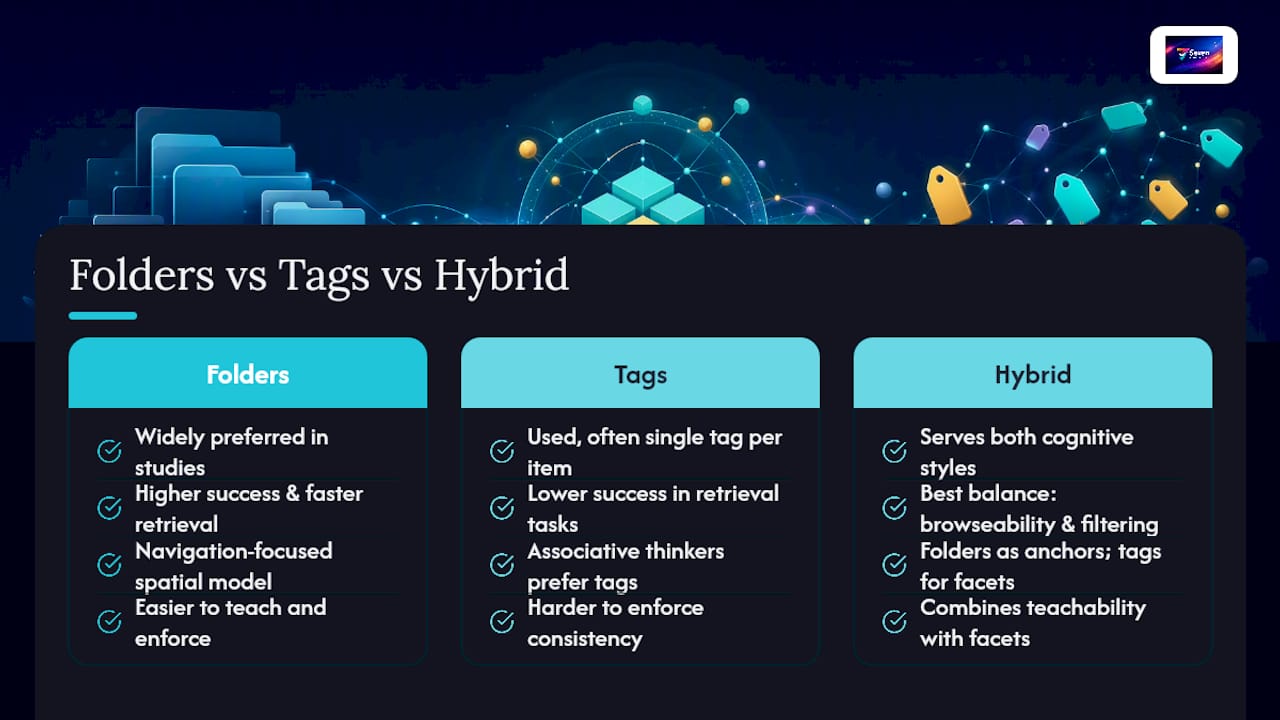
Bergman et al.'s controlled study of real users in Gmail and Windows 7 environments found a persistent preference for folders over tags in both storage and retrieval tasks. Participants who adopted tagging often used only a single tag per item, which largely negated the multi-facet advantage tags are supposed to provide. In controlled retrieval tasks, folders produced higher success rates and faster retrieval speeds.
Civan et al. (2008) found similar patterns in personal information management: users defaulted to folder navigation even when search tools were available, suggesting that the visual, spatial nature of folders aligns with how most people mentally model their files.
"People differ: linear thinkers prefer folders; associative thinkers prefer tags. For teams, folders win because they're easier to teach and enforce." This insight from research on personal information management explains why hybrid systems work: they serve both cognitive styles without forcing a choice.
The practical implication is that tags are most valuable when the tag set is small, consistent, and maintained. A system with 50 tags where each item has one tag is worse than a folder system. A system with 10 tags where each item has two or three well-chosen tags is genuinely more powerful than folders alone.
Expert productivity frameworks reinforce this. GTD (Getting Things Done) uses contexts and projects as organizational facets, which map directly to a folder-for-project, tag-for-context model. Kanban uses status columns as metadata, which is exactly what status tags do in a notes or file system. The PARA method's four-container structure pairs well with tags used inside those containers for cross-cutting facets, and it's one of the most widely adopted folder-first anchors in productivity practice.
The consistent finding across both research and practitioner frameworks: a hybrid approach produces the best balance of browseability and attribute-based filtering. Neither pure folders nor pure tags wins outright.
A starter configuration worth copying
Start with PARA's four folders and eight tags. That's the recommendation, and here's the exact configuration:
Folder tree:
Projects/
Areas/
Resources/
Archives/
Eight starter tags: #urgent, #waiting, #draft, #approved, #recurring, #reference, #person, #topic
Rules: Apply one status tag and one context tag per item, maximum. Never create a new tag during the first 30 days. If something doesn't fit the eight tags, use the closest match and note the gap. After 30 days, review your notes and decide whether a new tag is genuinely needed or whether the existing set covers it with a slight stretch.
For teams, add one more rule: the tag set lives in a shared document that everyone can see and edit by proposal only. No one creates a new tag without updating that document. That single constraint prevents the tag fragmentation that kills shared systems.
Seventasks fits the hybrid approach without the lock-in
Seventasks gives you the folder-plus-tag structure this guide recommends, without tying your data to a proprietary format. Flexible workspaces act as your top-level folders; boards and lists handle project containers; labels and tags carry status and context metadata. File attachments, built-in messaging, and due date tracking live alongside your tasks, so the system stays in one place. You can import existing task lists directly from Excel, which makes the Phase 2 migration described above a single operation rather than a manual re-entry project. Every workspace exports cleanly, so your data stays yours.
Individual plans start at $5/month; team plans at $9/user/month, both with a 7-day free trial. If you want to run the 14-day pilot described in this guide inside a real project tool, start your free trial at Seventasks and set up your PARA folders and eight starter tags on day one.
Sources
- Folders vs. Tags: The Best Way to Organize Digital Notes | reMarkable
- Tags vs. Folders: File Organization Explained
- The effect of folder structure on personal file navigation (Bergman et al.)
- Why Use Tags Instead of Folders? One Item, Many Homes · Journal